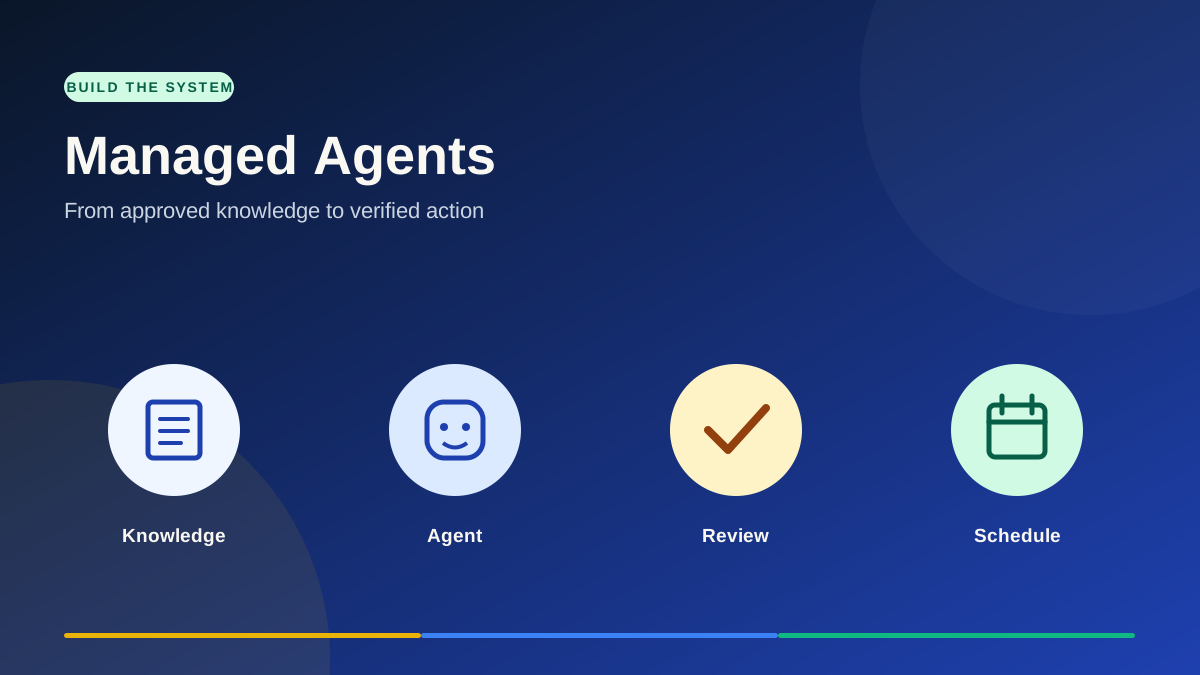
Build a social media agent with approved business knowledge, limited skills, connected channels and a recurring task. Every step explains what to configure and how to verify that it worked.
Approved knowledge, limited skills, connected channels and a recurring task.
Prove
One verified outcome
Check both the agent run and the destination in Social Planner.
Expand
One client-ready offer
Define deliverables, billing, review and account-by-account setup.
A simple delivery path: approved knowledge → agent → human review → scheduled publishing.
Before you start: use a test sub-account and a real, approved business brief. Confirm the Managed Agents tab, user permissions, connected channels and available skills before publishing. A generated setup report is useful, but any promised Voice AI or chat agent must exist and pass its own test.
Implementation checklist
Build, prove and package it
Check off each step as you complete it. Progress stays in this browser.
Plan the first job
plan · 01
Choose one client outcome
Start with a service you can review and deliver each month. A home services social media manager, for example, can research topics, draft posts and images, then schedule approved content. Define the business, channels, cadence, reviewer and success measure before opening the builder.
Pick one account and one job for the first agent.
Write down the approved brand facts, offers and channels.
Decide whether the agent may publish or should only draft for review.
What to verify: A monthly fee needs a recurring deliverable. “AI agent” alone is not the deliverable.
plan · 02
Confirm access to Managed Agents
Open the intended sub-account and go to AI Agents → Agent Studio → Managed Agents. If the tab is unavailable, check the user’s permissions and whether the feature is enabled for that sub-account.
Use a test sub-account first.
Confirm that the Managed Agents tab is visible.
Enable access only for accounts that will use the service.
What to verify: You can see the Managed Agents tab and create a draft in the intended account.
plan · 03
Prepare a real knowledge base
Create or select a Knowledge Base with services, service area, proof, tone, exclusions, actual offers and booking rules. Use verified client information. The agent must not treat invented prices, discounts or guarantees as business facts.
Go to AI Agents → Knowledge Base.
Add rich text, FAQs, approved files or website sources.
Review every claim and connect the finished source to the agent.
What to verify: Every price, promotion and guarantee in the knowledge base has client approval.
Build the agent
build · 04
Create the Managed Agent
Open AI Agents → Agent Studio → Managed Agents, then Create Agent. Create a folder for the client or service and choose a focused social media use case. Name the agent by client and job so its Activity feed is easy to find later.
Create a folder for the client or service.
Choose a social media use case or start from a description.
Name the draft before configuring actions.
What to verify: Keep the first build in one sub-account, with one clear role.
build · 05
Describe the job in plain language
Give the builder a specific brief: what it should research, which approved sources it may use, which platforms to prepare for, and whether it may schedule or publish. Review the generated instructions before saving them.
State the business, audience and service area.
Name the exact outputs and channels.
Add approval and factuality rules to the instructions.
What to verify: The builder can draft a configuration; the resulting instructions still need a human review.
build · 06
Audit skills and permissions
Open the generated configuration. Inspect triggers, connected apps, web search, image generation and CRM or Social Planner skills. The skill catalog is broad. A listed action is not proof that it is connected, suitable for the client or working in this account.
Keep only the skills the job needs.
Check which connected accounts and data the agent can reach.
Remove broad or irrelevant actions before publishing.
What to verify: An agent with publishing or contact-editing access can change live client assets. Start narrow.
build · 07
Attach the knowledge base
Connect the approved Knowledge Base in the agent configuration. Wait for its sources to finish processing, then test whether the agent uses those facts accurately.
Select the approved Knowledge Base.
Ask the agent a few factual questions.
Correct source content when an answer is wrong, then retest.
What to verify: A generated answer that sounds convincing is not evidence that the source is accurate.
build · 08
Run a supervised content test
Ask for a small batch of posts and images. Compare each draft with the approved brief, brand voice, service details and offer terms before it reaches a client channel.
Check every claim, image and call to action.
Confirm that the proposed post fits each channel.
Edit or reject weak drafts before client use.
What to verify: For training, use a real approved offer or a clearly labeled fictional example.
build · 09
Connect and verify Social Planner channels
Connect the intended social accounts before asking the agent to schedule. If a channel was missing during an earlier attempt, reconnect it and run the scheduling request again.
Connect the intended channels in the client sub-account.
Ask the agent to schedule one approved test post.
Open Social Planner and verify the post, account, date and time.
What to verify: A message saying “scheduled” is not the test. The entry must exist in Social Planner.
Run and verify
launch · 10
Add a recurring schedule
Open Edit Agent → Add trigger → Schedule. Choose a recurring interval, confirm the sub-account timezone and write specific instructions for each run. Add another schedule if the work requires a different cadence.
Set the correct cadence and time.
Write the exact task for that schedule.
Set an end condition or review date if the service is time-limited.
Publish to activate the trigger.
What to verify: A daily trigger without a channel connection or approval process only repeats the problem.
launch · 11
Inspect the Activity feed after a live run
After a controlled run, inspect the agent Activity feed. Verify that the trigger fired, which skills ran, what output was produced and whether the intended destination changed.
Run a controlled test.
Check the agent Activity feed or logs.
Inspect the destination asset, such as Social Planner.
Record failures and revise the instructions or connections.
What to verify: Treat the agent’s reply and the actual account state as two separate checks.
Turn it into a service
expand · 12
Test a form-triggered onboarding agent
An internal onboarding form can trigger an agent to research the customer’s website and produce an intake report or setup specification. Check the available skills before promising that it can create Voice AI or chat agents. Verify those agents exist and pass their own tests if creation is part of the service.
Create an internal form with website, business summary and contact fields.
Select that exact form in the Form Submitted trigger.
Submit fictional test data and inspect the run.
Use the report as a draft, then build and test the downstream agents separately.
What to verify: A setup specification is not a configured and tested Voice AI or chat agent.
expand · 13
Package, price and hand off the service
Define the recurring deliverable and support scope before pricing the service. Managed Agents can be included in Account Snapshots with their supporting assets. Verify connections, permissions and behavior in every destination account.
Define setup work, monthly outputs, approval owner and support scope.
Check the current AI usage and rebilling settings before quoting a price.
Include the agent and dependent Knowledge Base or workflows in the Snapshot.
Load into a test account and repeat the end-to-end checks.
What to verify: Snapshots copy configuration, not live client connections, credentials or customer records.
Launch standard
A successful run leaves evidence.
For social content, the proof is an approved post in the intended Social Planner account at the intended time. For onboarding, the proof is a real Voice AI or chat agent that exists and passes its own test. An agent’s written claim is only a starting point.
Before charging monthly
✓ Agreed monthly deliverables
✓ Named approval owner
✓ Verified integrations
✓ Cost and usage review
✓ Failure and escalation path
Sources
Check the current details
Reviewed October 7, 2026. Check the official HighLevel documentation and your account settings for current labels, permissions and billing.
Each step includes your original short prompt and a more detailed version. Copy either one to build the agent, create its sample knowledge base, and prepare two social posts. Maya’s Home Services and the offer are fictional training examples. Replace placeholders and approve campaign terms before using any content for a real business.
01 · Build the agent
Create Maya’s social media manager
Your short prompt
I want you to create an actual social media manager agent that's going to manage, schedule, and create all the social media for a potential home services business called Maya’s Home Services.

This Maya’s Home Services business is a construction service that does bathrooms, kitchens, and remodeling.

The goal is to create posts that are going to track new business. Your goal is to not only schedule them, like I mentioned, but also to create them and to do other things inside social media to help them generate business.
Expanded prompt
Create a working HighLevel Managed Agent named “Maya’s Home Services | Social Media Manager” in this sub-account. Maya’s Home Services is a fictional training business that handles kitchen restorations, bathroom restorations, and general remodeling. The agent’s main goal is to turn useful social content into qualified consultation bookings, not just produce a content calendar.

Configure the agent to plan a weekly Facebook and Instagram content mix, create platform-specific captions and image concepts, prepare or generate images when that skill is available, and schedule approved posts through the connected Social Planner accounts. It should also identify useful engagement opportunities, flag comments or messages that show project interest, and recommend a follow-up or appointment action using only the skills and permissions actually available in this account. Do not invent an integration or claim an action happened without checking the destination.

Use the approved “Maya’s Home Services | Demo Knowledge Base” for services, brand voice, FAQs, and offers. If that Knowledge Base does not exist yet, create the agent as a draft and tell me exactly how to attach it after I create it. Use only verified business facts. Do not invent project photos, customer reviews, addresses, pricing, availability, or booking links. Label all example material as fictional until a real business approves it.

Set up a recurring weekly planning task and a separate review of upcoming posts if supported. Draft content for human approval before scheduling or publishing. For any approved post, use the correct connected channel, account, date, and time. If a channel, booking link, approval flow, or required skill is missing, stop that action and list what I need to connect.

Finish by showing the actual agent configuration: role, instructions, knowledge source, enabled skills, connected channels, triggers, approval point, and one test run. Verify a test draft and, when approved and connected, verify the scheduled item in Social Planner. Separate completed configuration from recommendations and unavailable capabilities.
02 · Build the knowledge base
Create Maya’s sample knowledge base
Your short prompt
I want you to create a make-believe knowledge base for Maya’s Home Services company. It's in charge of major restorations. It does kitchens, bathrooms, and general remodeling. I want to make sure that you are creating a pretty significant knowledge base that I can give to other AI agents as a demo to then enhance the quality of work that it's going to do.
Expanded prompt
Create a substantial, clearly fictional demo Knowledge Base named “Maya’s Home Services | Demo Knowledge Base” for use by a HighLevel Managed Agent. This is training material, not a real company profile. Maya’s is a home construction and major restoration business focused on kitchens, bathrooms, and general remodeling. Write the Knowledge Base as ready-to-paste rich text with clear headings and enough detail for an agent to create accurate, varied social content and answer common pre-sales questions.

Include: a concise company profile and ideal customers; separate service descriptions for kitchen restoration, bathroom restoration, and general remodeling; common project goals and design styles; a realistic inquiry-to-consultation-to-estimate-to-build process; what to prepare for a consultation; FAQs on scope, timelines, living through a renovation, design decisions, permits, estimates, and change requests; brand voice and words to use or avoid; content pillars; strong appointment calls to action; and guardrails for claims, testimonials, and images. Use “sample” wherever a detail is invented. Leave [service area], [booking link], [phone], [email], [hours], and any real license, insurance, warranty, or testimonial details as explicit placeholders. Never present a generated kitchen image as an actual Maya’s completed project.

Add a clearly labeled demo promotion section: “50% off kitchen restoration for qualified projects when a consultation is booked within 48 hours of the campaign launch.” The asterisk disclosure must say: “*Qualified projects only. Book a consultation within 48 hours of campaign launch. Eligibility is confirmed during consultation.” Do not invent extra qualification rules, exclusions, prices, or a campaign start/end time. Mark the exact eligibility criteria and campaign dates as “owner approval required before use.”

End with a compact agent reference sheet: approved facts, unknowns requiring a human answer, offer wording, response rules, and the preferred next step for an interested prospect. Output the complete Knowledge Base text, not just an outline. If you can create it in the HighLevel Knowledge Base area, save it and tell me where; otherwise return the full text for me to paste.
03 · Create the campaign
Draft two kitchen posts and images
Your short prompt
I want a couple of posts that we're going to post inside of our Facebook and Instagram account. That's going to be some images, some restorations for kitchens, because we are running a special on kitchen restoration, which is going to be 50% off if they book within the next 48 hours to build their dream kitchen. They have to qualify; that's the only catch so make sure you put in a little asterisk.

Make it really modern-looking, with beautiful kitchen designs as some of the posts but I also want you to have some creative guidance. Just build something that is going to convert our customers from looking at the post to actually making appointments.
Expanded prompt
Using the approved “Maya’s Home Services | Demo Knowledge Base,” create two distinct, appointment-focused social posts for a fictional kitchen restoration campaign: one for Facebook and one for Instagram. Maya’s is offering 50% off kitchen restoration for qualified projects when a consultation is booked within 48 hours of campaign launch. This is a demo offer. Do not publish it to a live account until the owner supplies the campaign start/end time, eligibility criteria, booking link, and written approval.

For each platform, provide: a complete caption with a strong opening, one or two specific benefits of a modern kitchen restoration, a clear invitation to book a consultation at [booking link], a short version for reuse, and a few relevant hashtags. Use the asterisk immediately after the 50% claim and include this exact disclosure in the caption: “*Qualified projects only. Book a consultation within 48 hours of campaign launch. Eligibility is confirmed during consultation.” Do not add unsupported scarcity, guarantees, customer quotes, or project results.

Create two different, modern kitchen image concepts to accompany the posts. The Facebook concept should feel warm and welcoming with a bright white-oak kitchen; the Instagram concept should feel bolder with walnut cabinetry and sculptural lighting. Generate the images if image generation is available. Otherwise provide production-ready image prompts with composition, lighting, color palette, crop, and accessibility alt text. Keep promotional text out of the generated image so it can be laid out and checked separately. Label any generated scene “Concept image” and never imply it is a completed Maya’s project.

Explain why each post should move a viewer toward an appointment. Then give a proposed posting date/time for each connected account, the approval checklist, and the exact Social Planner item to verify after scheduling. Save as drafts for review. Schedule only after the offer details, copy, images, link, accounts, and dates are approved. Report what you created and what remains pending.