Companion guide · Automation workflow

For agencies ready to automate what happens after a lead comes in

Turn every lead into a booked, closed, reviewed client.

Use this beside your HighLevel sub-account. It builds one connected system — pipeline, calendar and workflow logic — that moves a lead from first contact to a five-star review without you touching it.

Start the guide

The system you're building

1 · Generate

Ads, forms and landing pages create one tagged contact.

2 · Nurture & book

Automatic follow-up puts them on the calendar, then reminds them.

3 · Close, deliver & review

The estimate, the job and the review request all move the pipeline on their own.
Build: one pipeline whose stages match your real sales process.
Automate: the follow-up, the reminder and the review request — not just the pipeline move.
Test first: run one real lead through before you turn this on for live traffic.
Before you start

Draw your 3 stages before you touch a workflow.

Use one sentence: "A lead becomes ___ when ___, gets booked when ___, and counts as won when ___." Keep that sentence open while you build the pipeline and workflows below.

Generate
Every way a stranger becomes a contact
Nurture & book
First reply, calendar link, reminders
Close, deliver & review
Estimate, job, pipeline stage, review ask

01 · THE SYSTEM

Map Generate, Nurture & Book, and Close & Review before you build anything.

  • Generate leads: paid ads, a form, a landing page or a referral — each source should create one contact and tag where it came from.
  • Nurture & book: what happens between "we have their info" and "they're on the calendar" — the automatic follow-up, the response check, the reminder.
  • Close, deliver & review: what happens after the appointment — the pipeline update, the estimate or invoice, the completed job and the review request.
What you're building: a single pipeline whose stages read like a sentence — New Lead → Contacted → Booked Call → Estimate Sent → Won → Review Requested — with a workflow doing the moving, not you.
02 · PIPELINE

Create one pipeline with a stage for every moment that matters.

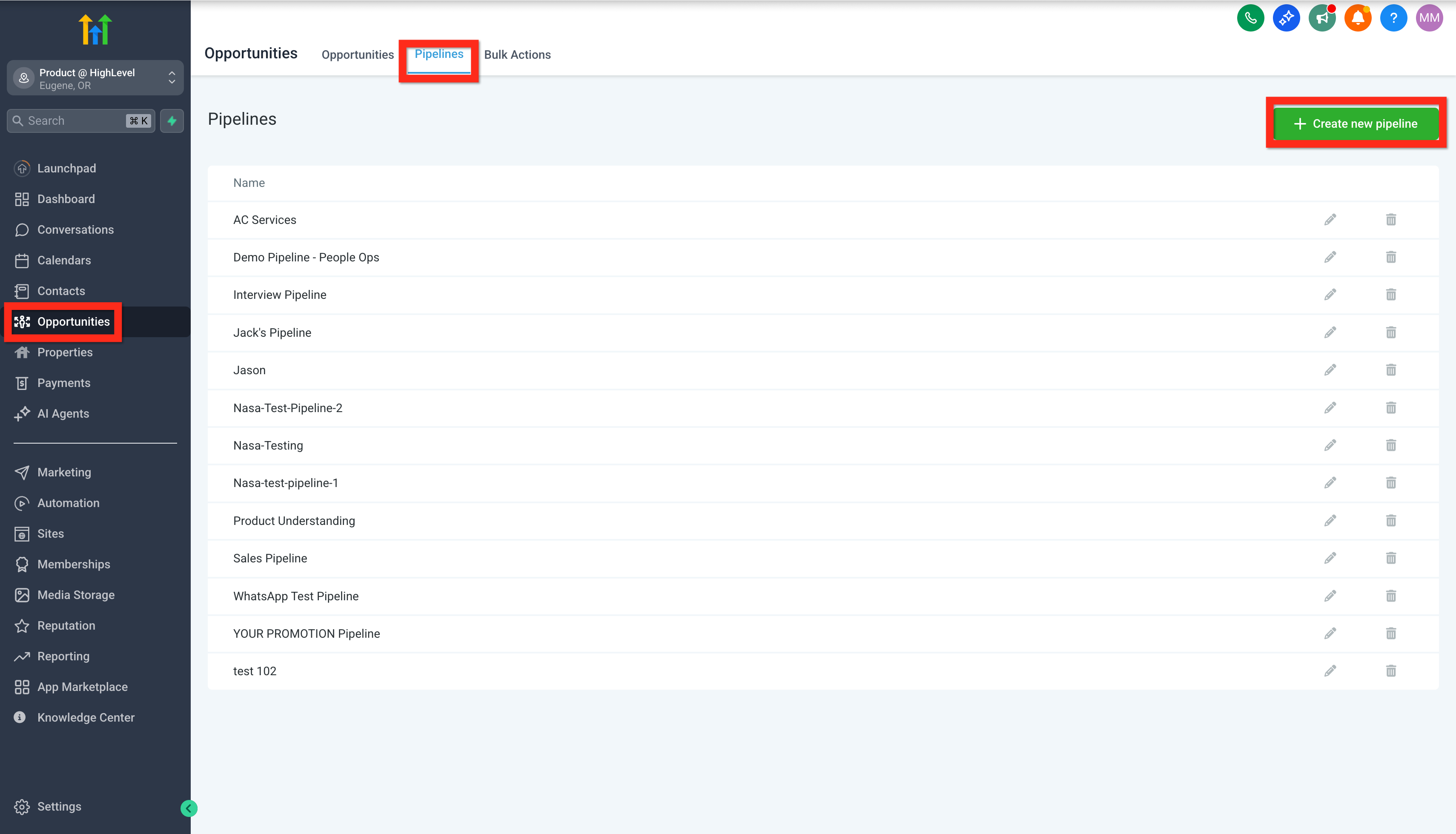
  1. Open Opportunities → Pipelines → Add pipeline.
  2. Name it after the process, not the product — "Lead to Review," not "Sales."
  3. Add a stage for each moment from Step 01: New Lead, Contacted, Booked Call, Estimate Sent, Won, Review Requested — plus Lost/No-Show so dead opportunities have somewhere to go.
  4. Keep stage names short; they'll show up inside workflow triggers and conditions later.

Opportunities → Pipelines → Add pipeline

Guardrail: a stage you can't describe in five words is usually a sign you're tracking two different processes in one pipeline.
HighLevel Opportunities → Pipelines screen with the Create new pipeline button highlighted
Official HighLevel screen reference: Opportunities → Pipelines is where every pipeline for the sub-account lives — this is the screen behind Step 02.

03 · LEAD CAPTURE

Make every form, ad and landing page create a contact and an opportunity.

  • Point every lead source — Facebook/Google lead ads, a website form, a landing page — at the same pipeline's New Lead stage.
  • Use the Create/Update Opportunity workflow action so a form submission and an ad lead both land in the same place, however they arrived.
  • Tag the source on the contact (facebook-lead, google-ads, organic-form) so you can see which channel is actually working later.

Sites → Funnels/Forms; Automation → Workflows → Create Opportunity

Ad, form or landing pageFacebook/Google lead ad, website form
Create/Update OpportunityWorkflow action, tags the source
New Lead stageOne contact, one opportunity
What you should see: a new test submission creates one contact and drops one opportunity into New Lead — not two, not zero.

04 · FIRST FOLLOW-UP

Reply to a new lead before they forget they filled out the form.

  • Trigger: Contact Created or Opportunity Created on the pipeline from Step 02.
  • First action: an immediate SMS and/or email, personalized with the contact's first name, within minutes of signup — not hours.
  • Branch it: did they reply or book? If not, a second follow-up after a short delay; if yes, exit the sequence and move the pipeline to Contacted.
  • Add an internal notification so a team member knows a hot lead just came in.

Automation → Workflows → Add Workflow → Add Trigger

Guardrail: speed beats cleverness here. A plain "thanks, when works for you" SMS sent in five minutes outperforms a polished email sent the next morning.
HighLevel Create Workflow menu with Select a Recipe, Start from Scratch and Select from Template options
Official HighLevel screen reference: every workflow in this guide starts from this menu — a pre-built recipe is the fastest way to get the first follow-up running.

05 · CALENDAR

Let the workflow hand the lead a calendar, then remind them automatically.

  • Create a booking calendar (Calendar → Calendar Settings → Create Calendar) and drop its link into the follow-up message from Step 04.
  • Trigger a reminder workflow on the Appointment Status trigger, so a confirmation and a reminder go out automatically as the appointment approaches.
  • Add a cancellation/no-show branch: if the status changes, fire a different follow-up instead of leaving the lead stranded.
  • Move the pipeline stage to Booked Call the moment the appointment is created — don't do it by hand.

Calendar → Calendar Settings → Create Calendar; Automation → Workflows → Appointment Status

What you should see: booking the test appointment updates the pipeline stage and fires a confirmation message without you clicking anything.
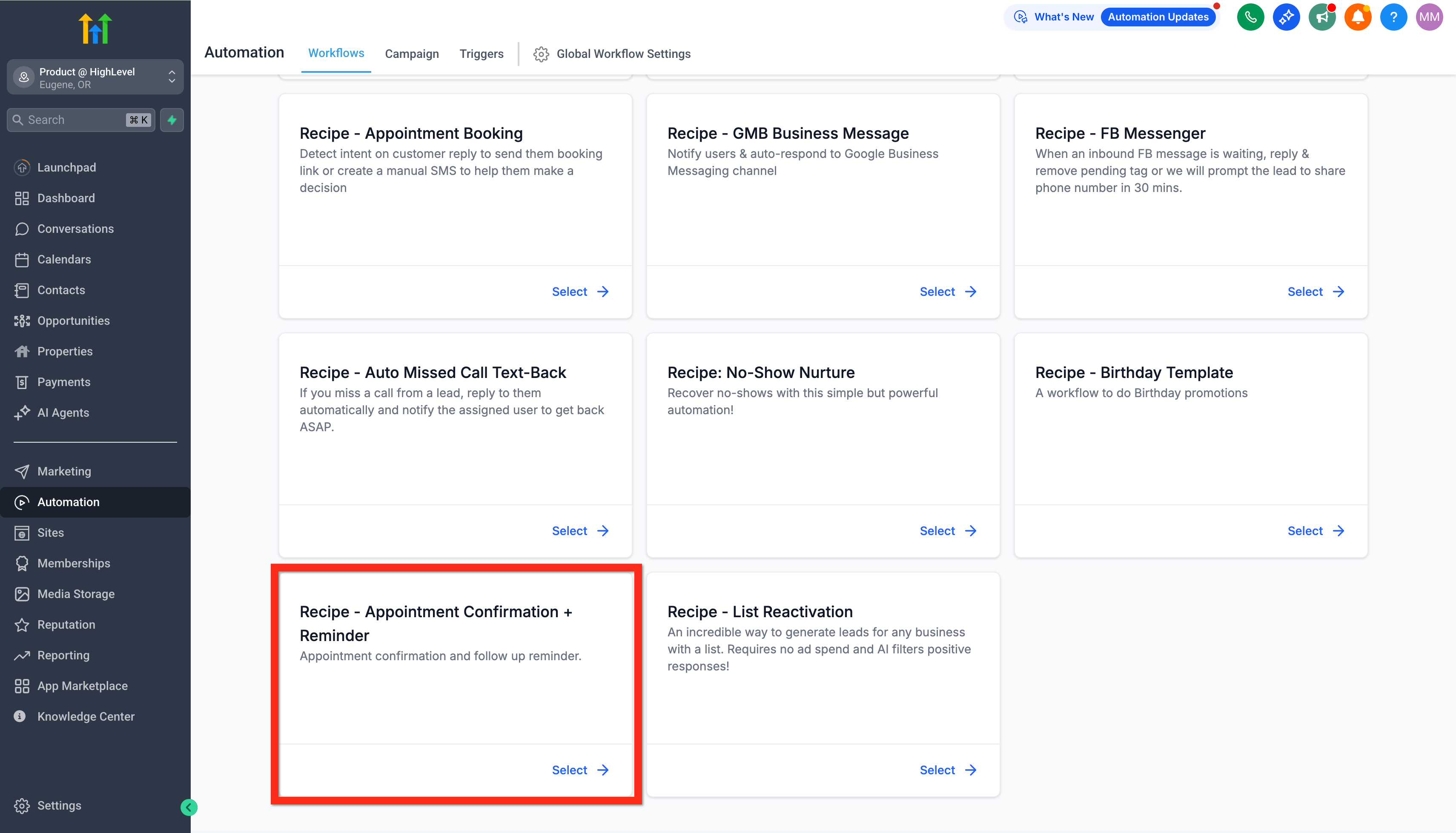
HighLevel Recipe - Appointment Confirmation + Reminder card in the workflow recipe library
Official HighLevel screen reference: the "Appointment Confirmation + Reminder" recipe builds this trigger for you instead of starting from a blank workflow.

06 · CLOSE

Chase the estimate automatically so deals don't die in your inbox.

  • Send the estimate or invoice from the opportunity's Payments tab so it's already linked to that deal.
  • Trigger a workflow on the estimate's status: Accepted moves the pipeline to Won; Not Accepted starts a short SMS follow-up sequence — SMS gets read faster than email on a pending estimate.
  • Update the pipeline stage automatically on each branch — Estimate Sent, then Won or back to Contacted for another attempt.

Opportunities → [deal] → Payments → Create Estimate/Invoice; Automation → Workflows

Trigger: estimate status changesFires the moment the client responds
AcceptedStage → Won; close out the follow-up sequence
Not acceptedStage stays Estimate Sent; short SMS nudge sequence starts
Guardrail: cap the follow-up sequence. Three automatic nudges over a week reads as attentive; three a day reads as spam and costs you the deal.

07 · REVIEW

Ask for the review the moment the job is actually done.

  • Trigger the review request off the pipeline stage change you already built — when an opportunity moves to Won/Job Completed, not off a calendar guess.
  • Send the request by SMS and/or email using your review link, and route happy vs. unhappy responses differently if your reputation tool supports it, so a bad experience reaches you privately before it reaches Google.
  • Move the pipeline to a final Review Requested stage so you can see who's been asked and who hasn't.

Reputation → Settings; Automation → Workflows

What you should see: marking the test opportunity Won fires the review request automatically — no one has to remember to send it.
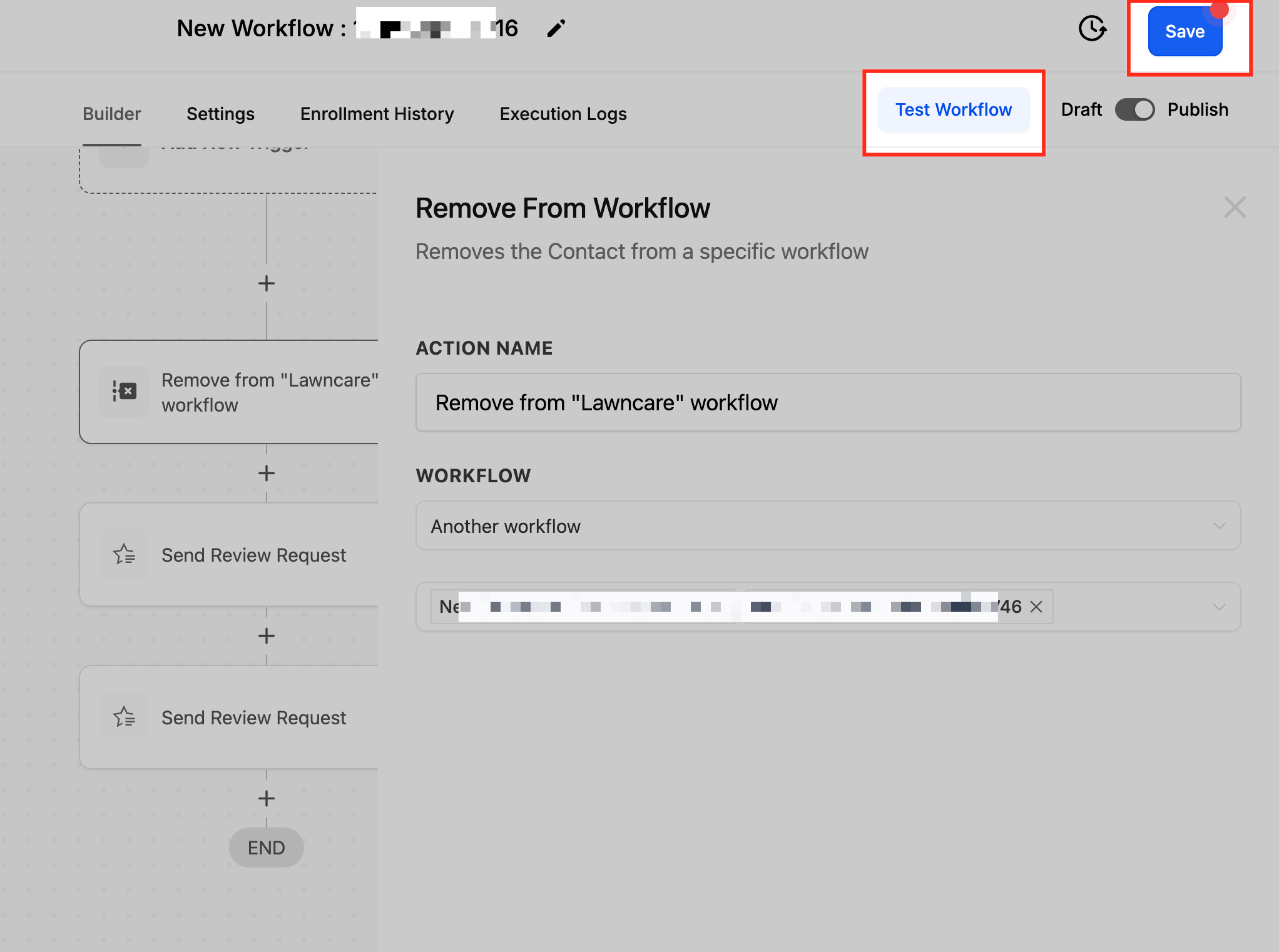
HighLevel workflow builder showing a Send Review Request action node, with Test Workflow and Save controls
Official HighLevel screen reference: Send Review Request is a standard workflow action — drop it in right after the stage change to Won.

08 · LAUNCH QA

Run one real lead through the entire system before you turn on traffic.

  1. Submit a real test lead through your actual form or ad, not a shortcut inside the CRM.
  2. Confirm the first follow-up sends within minutes and the pipeline moves to Contacted.
  3. Book the test appointment on an outside calendar with a different email; confirm the reminder fires and the stage moves to Booked Call.
  4. Send and accept a test estimate; confirm the stage moves to Won.
  5. Confirm the review request fires automatically and the stage lands on Review Requested.
1 · SubmitReal test lead → New Lead
2 · Follow upSMS sends → Contacted
3 · BookReminder fires → Booked Call
4 · EstimateAccepted → Won
5 · ReviewRequest fires → Review Requested
Pass condition: one contact record shows the whole story — form submission, follow-up, booking, estimate and review request — without a single manual step in between.
Sources & further help

Want the official detail?

This guide translates the build into plain language. These are the official HighLevel articles behind the steps above, for when you need the current menu labels or a deeper answer.

Last reviewed October 21, 2026.

NEXT READ

Ready to reuse this for every new client?

Once this pipeline and these workflows are tested and working, turn the whole thing into a master snapshot so every new sub-account starts with the system already built in.

Build a reusable snapshot