Companion guide · AI Studio

For agencies building apps, not just sites, in AI Studio

Connect any AI Studio app to your CRM.

AI Studio can build a working app from one prompt, but its form doesn't create a HighLevel contact on its own. This guide builds the one fix for that — an inbound webhook — once, so you can reuse it on every app you build next.

Start the guide
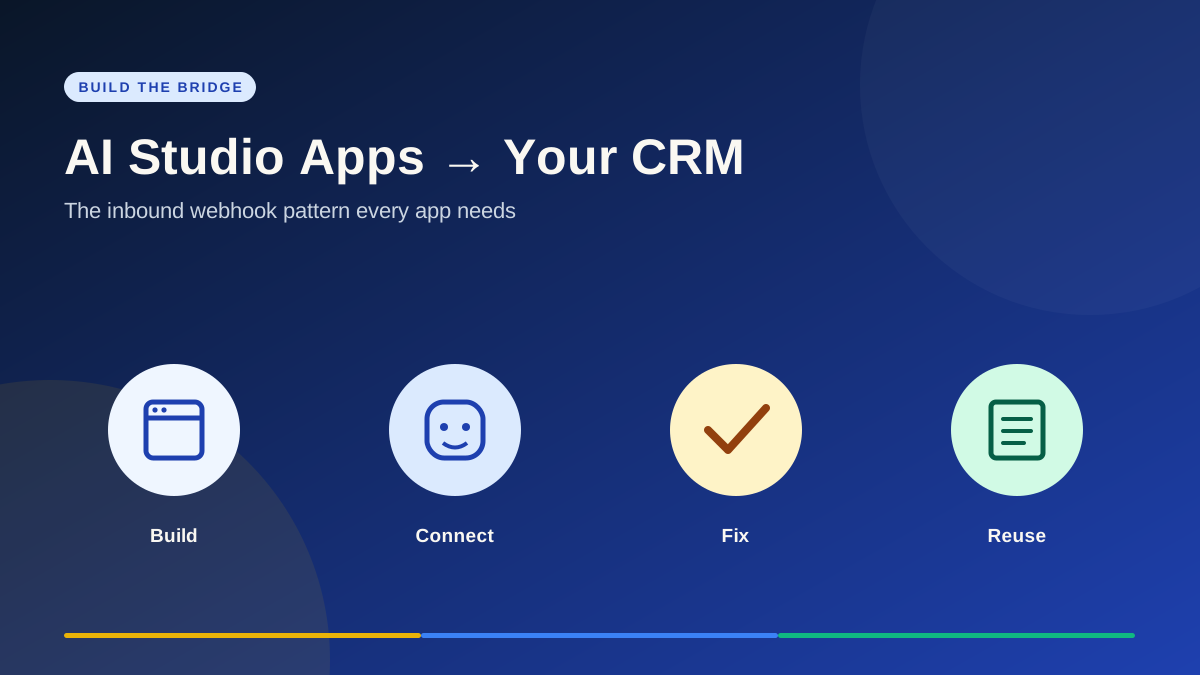
Flow diagram: build the app, connect it, fix the missing contact, then reuse the pattern
Build: one AI Studio app with a form that's meant to create a contact.
Fix: the one inbound-webhook pattern every app needs, not a per-app workaround.
Reuse: the same three steps on your next app, start to finish.
Before you start

Use a test sub-account, not a live client's.

You'll generate a working app, wire it to a workflow, and fire real test submissions through it. Do all of that somewhere a mistake costs nothing.

The app
Any form-based tool AI Studio generates
The bridge
One inbound webhook, stored as a secret
The payoff
The same fix, reused on every app after this one

01 · THE CURRENT SCOPE

AI Studio builds working apps now, not just marketing sites.

  • A single plain-language prompt can generate a real tool — a client onboarding wizard, a support-ticket tracker, a scored assessment — not just a page describing one.
  • What it generates is a standalone page with its own form. On its own, submitting that form does nothing inside your CRM — that's the gap this guide closes.
  • AI Studio is billed by use (expect roughly $0.60–$1.30 per build), and an inbound webhook trigger is a premium trigger billed per run — check your account's current usage pricing before you build this into a client offer.
Check before you build: AI Studio's feature set moves fast — Cloud database storage and in-app payments have shipped since this pattern was first documented. Confirm what's current in your account before promising a client a specific capability.
02 · BUILD

Generate the app, then look at its form like a lead-capture form.

  • Describe the app and its one job in plain language: what it asks, in what order, and what should happen when someone finishes it.
  • Keep the field set short and specific — name, contact details, then the two or three answers the app actually needs to do its job.
  • Treat the finished form the same way you'd treat a funnel form: every field is a piece of contact data, even though AI Studio doesn't know that yet.

AI Studio → New project → describe the app

03 · DIAGNOSE

Submit a real test entry, then check Contacts. It won't be there.

  • AI Studio apps are standalone pages — their forms aren't automatically wired into HighLevel's contact system the way a native form or funnel is.
  • A submission that "looks successful" in the app's own UI is not evidence it reached your CRM. Check Contacts directly.
  • This is the one gap in an otherwise-working app, and it's the same gap on every app you build this way.
What you'll see: the app confirms the submission to the person filling it out, but no new contact appears in HighLevel. That's expected — Step 04 is the fix.

04 · THE FIX

Add an inbound webhook trigger, and store its URL as a secret.

  • Create a new workflow and start it from an Inbound Webhook trigger rather than a recipe — this app's data doesn't match any built-in recipe shape.
  • Copy the trigger's generated webhook URL, then store it as a secret value inside the AI Studio app rather than pasting it into visible code — it's a credential, not a label.
  • Point the app's form submission at that stored secret so every completed form fires the webhook.

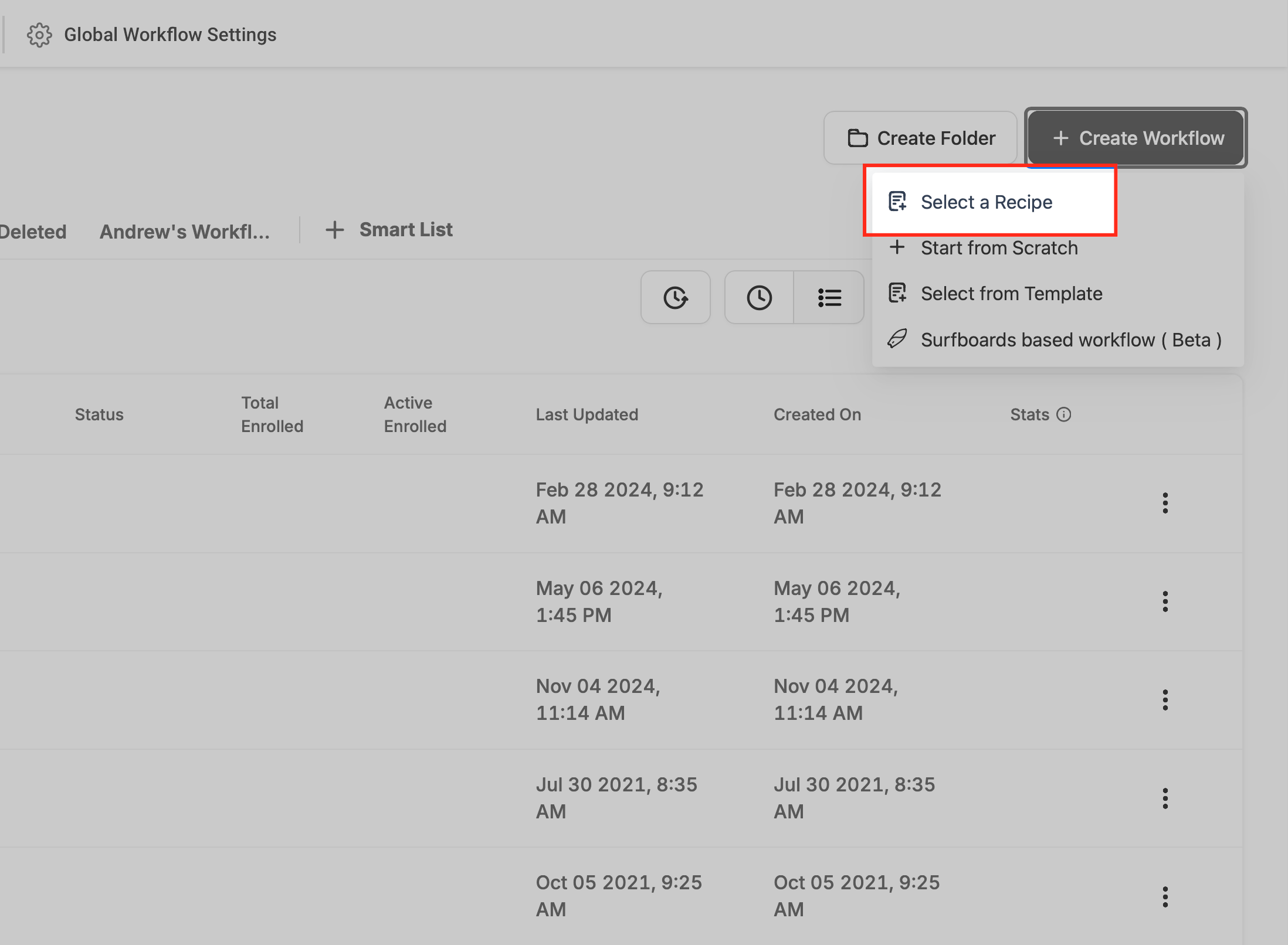
Automation → Workflows → + Create Workflow → Start from Scratch → Inbound Webhook

HighLevel Create Workflow menu showing Select a Recipe, Start from Scratch, Select from Template and Surfboards options
Official HighLevel screen reference: choose Start from Scratch here, then pick Inbound Webhook as the trigger — an AI Studio app's payload won't match a pre-built recipe.

05 · MAP

Turn the webhook's raw payload into a real contact.

  • Fire one real test submission first so the trigger captures a sample payload — the workflow builder maps fields far more reliably against real data than a guess.
  • Add a Create/Update Contact action and map name, email and phone to the matching payload fields.
  • Map any remaining app-specific answers (the assessment score, the ticket description) to custom fields on the contact, not just internal workflow variables — otherwise they're invisible everywhere else in the CRM.
Guardrail: a commenter on the source material asked about a newer native "AI Studio Form Submitted" trigger as an alternative. If your account has it, it may skip the manual webhook step — but the webhook approach here works on every account today and gives you the full raw payload to map, not just whatever fields a native trigger exposes.

06 · PROVE IT

Submit the live app's form and watch a real contact appear.

  1. Open the published app in a private/incognito window, like a real user would.
  2. Submit it with a throwaway test name and contact details.
  3. Confirm a contact appears in HighLevel within a few seconds, with every mapped field populated correctly.
  4. Open the workflow's execution log and confirm the webhook fired on the first try — a silent failure here is the most common way this pattern breaks.
Pass condition: one real submission, one real contact, every mapped field correct — not "the workflow shows as published."

07 · REUSE

This is one recipe, not a one-off fix — reuse it on every app.

  • A ticket tracker, a scored assessment, an intake form — every AI Studio app with a form hits the same gap, and closes it the same way: webhook trigger, stored secret, field mapping.
  • Save the workflow as a template once you've built it twice, so the next app only needs its own field mapping, not a rebuild from scratch.
  • Keep the webhook secret scoped to one app at a time — reusing one webhook URL across unrelated apps makes a broken mapping much harder to trace.
Sources & further help

Want the official detail?

This guide translates the build into plain language. These are the official HighLevel articles behind the steps above, for when you need the current menu labels or a deeper answer.

Last reviewed October 24, 2026.

NEXT READ

Ready to package what you built?

Once the app, the webhook and the mapping are tested and working, turn the whole thing into a reusable snapshot so your next client starts from a working system.

Build a reusable snapshot